How it works

Loqway was designed for translating and transcribing conversations using browsers on two connected devices.

However Loqway can also be used for translation with a single-device or to create a transcript for documenting same-language conversations.

Using with Two Devices

Open a browser window and log in to your Loqway account.

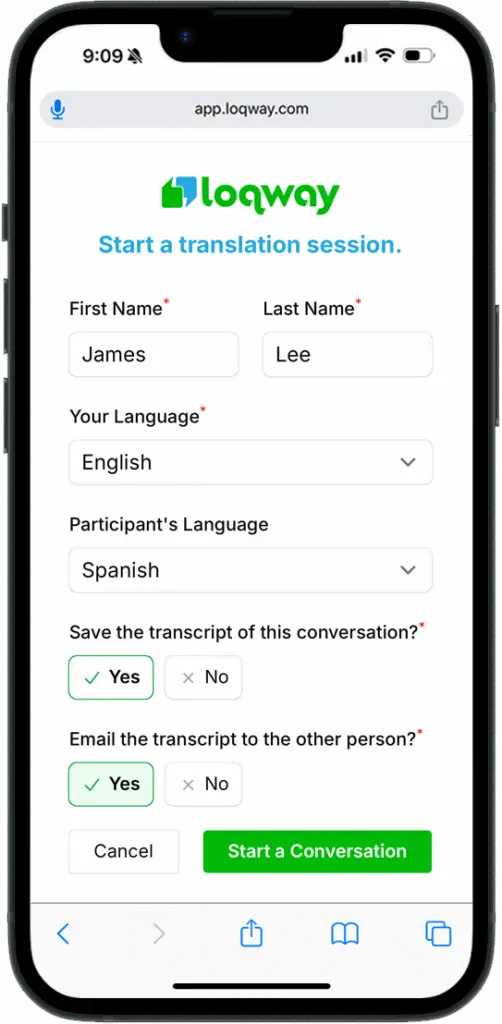
Click the “Start a Conversation” button in the upper right corner.

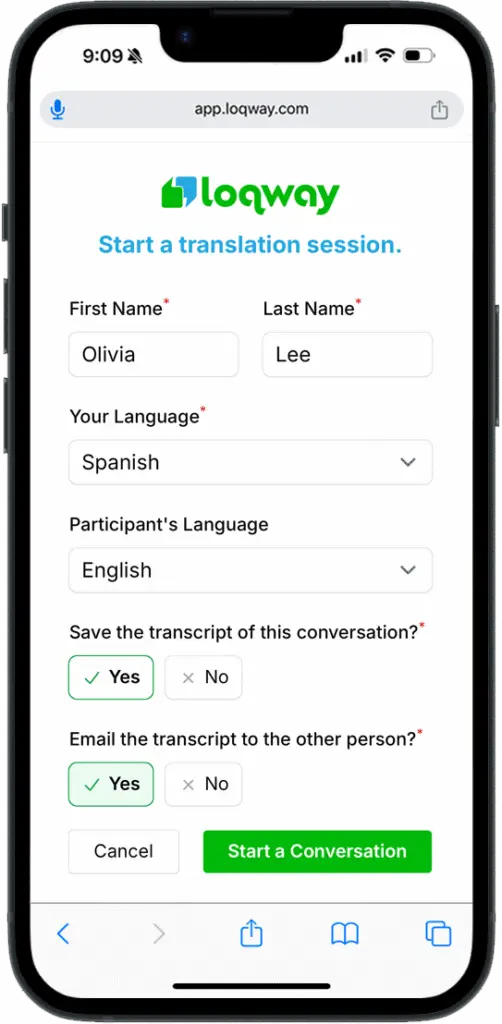
In the “Your Language” drop down, choose the language you speak.

Optional: In the “Participant’s Language” drop down menu, choose the language the other person speaks. If you’re not sure, you can leave it blank and they will select it when they join.

You can save and/or share the transcript if you choose.

Click the green “Start a Conversation” button in the bottom right corner

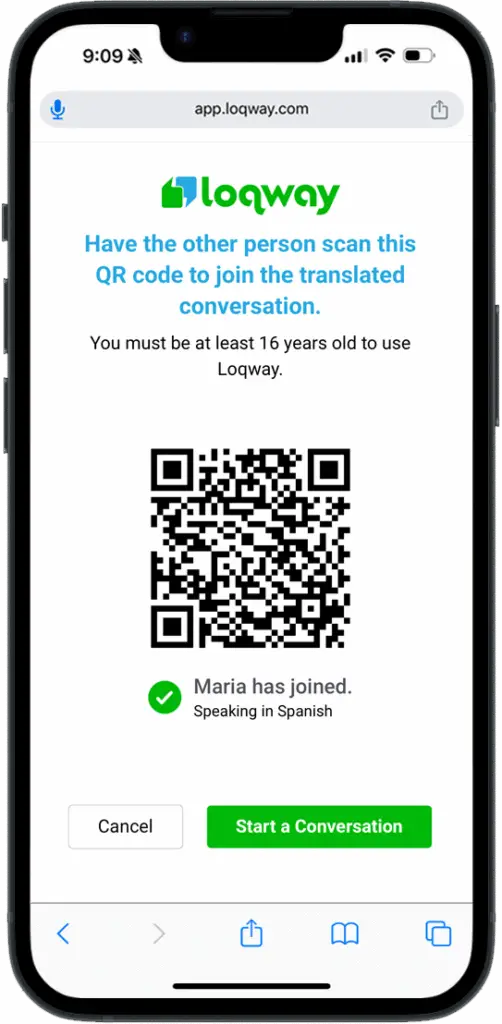
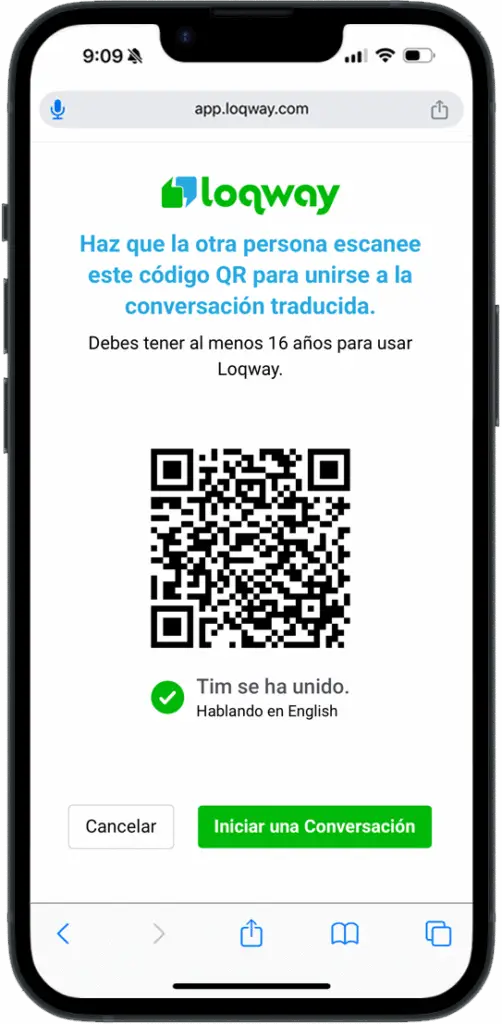
The person you are talking with will scan the QR code from your device to join the conversation.

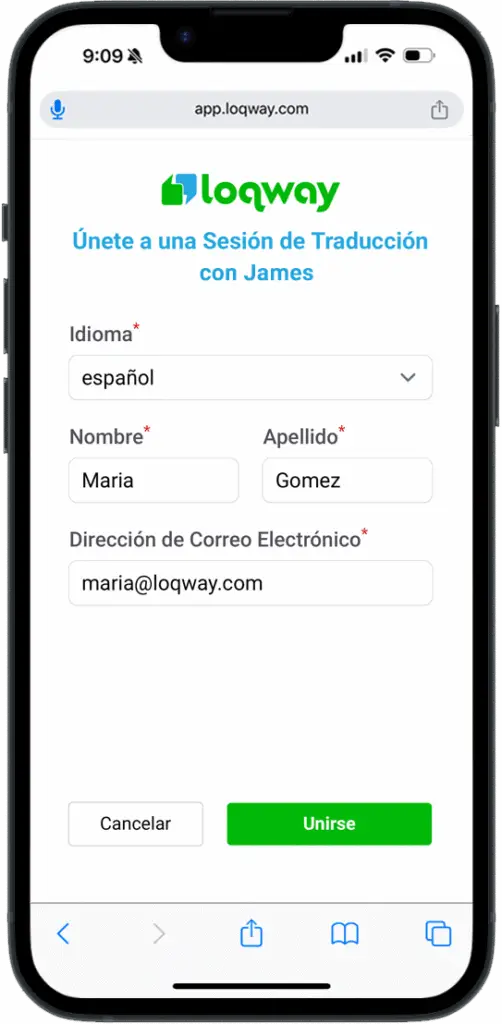
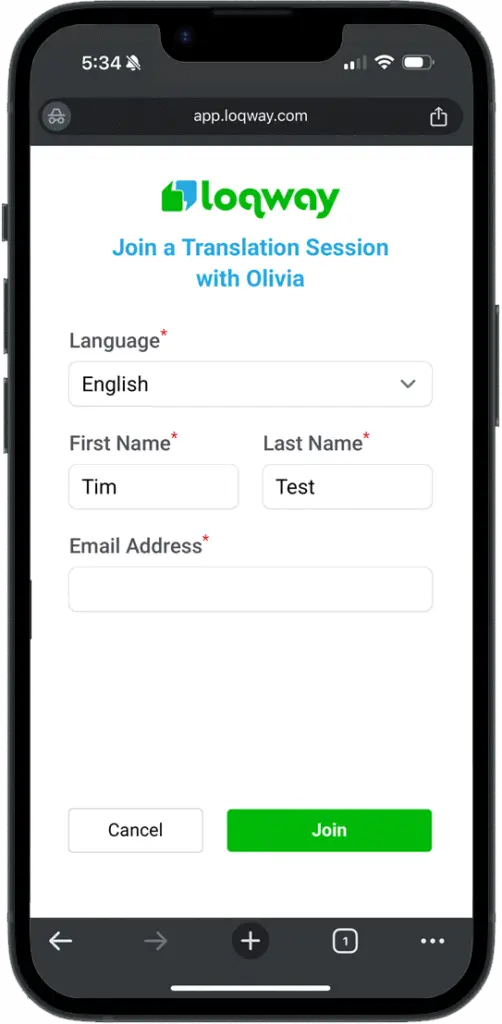
They will enter their name and choose their language.

If you opted to send them the transcript, they will enter their email as well.

Your device will confirm when the other person has joined by displaying their name and language under the QR code.

Click the “Start a Conversation” button in the lower right corner.

As you begin speaking, a translation of your words will appear on their device.

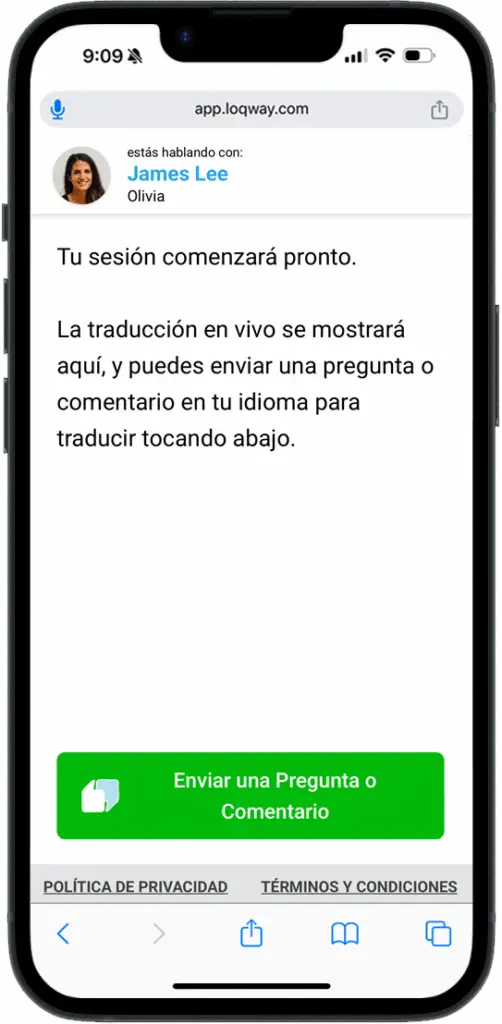
When it’s their turn to speak and respond, or when they have a question, they will use the green “Send a Question or Comment” button and type want they want to say in their language.

They may also be able to use speech-to-text because their device is set to listen for their language by default.

 Their question or comment will appear on your device already translated into your language. As you answer their question or continue the conversation responding to their comment, your speech will be translated for them.

As you respond to their comments and questions, simply click the blue box to remove them. If you chose to save the transcript, their comments will appear in the order of your conversation

Repeat these steps as you have your conversation.

image of two smartphones, the one on the left shows two text fields, both in English and the phone on the right shows two text fields both in Spanish. There are arrows showing that the top English text field is being translated to the top Spanish text field and then an arrow indicating the bottom Spanish text field is being translated into English on the bottom of the left phone

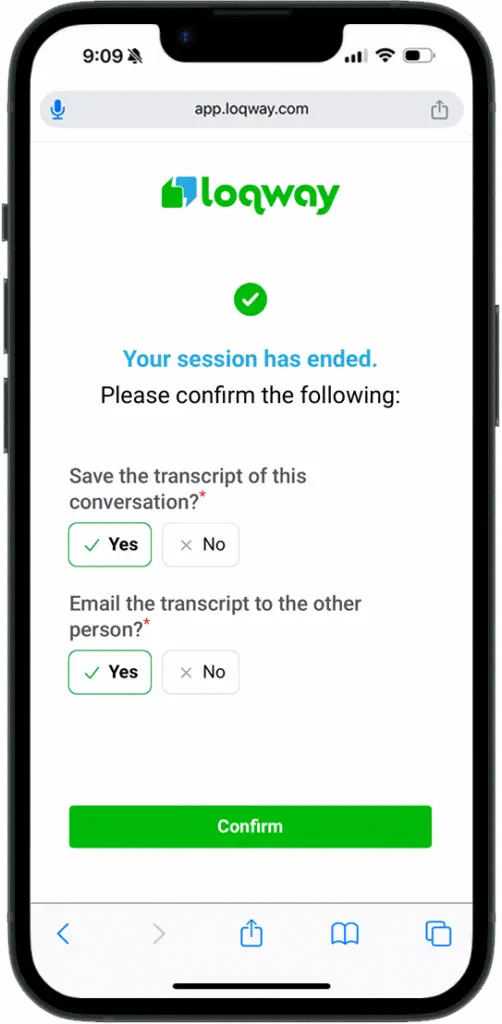
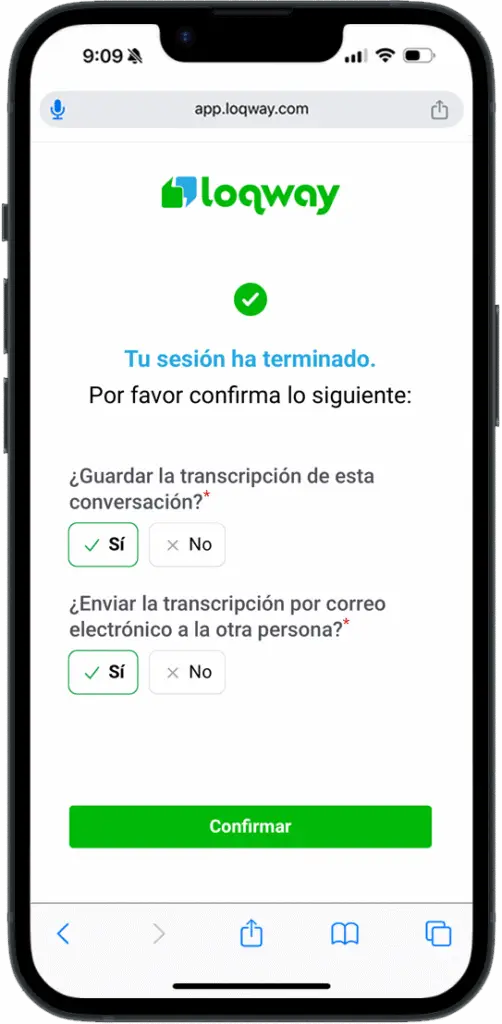
When the conversation is over, click “End Session” on your device. A pop-up will appear asking you to confirm that you want to end the conversation. Click OK.

You will be able to change your selections from the beginning regarding saving the transcript or emailing the transcript.

Click the “Confirm” button.

If you saved the transcript, you can view it from your dashboard.

If you shared the transcript, your conversation partner will receive an email with a link to the transcript.

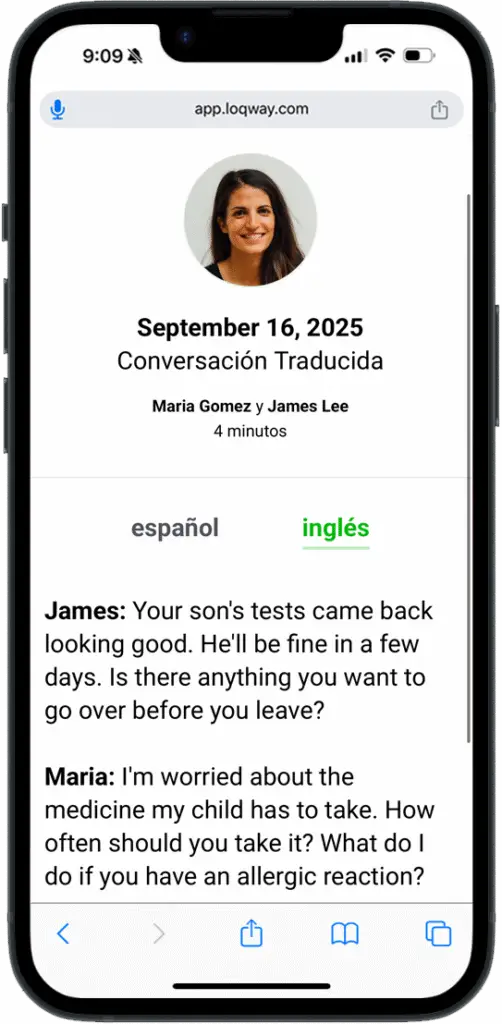
The transcript is provided in both languages. Simply toggle between them as needed.

Single Device Instructions

Open a browser window and log in to your Loqway account.

Click the “Start a Conversation” button in the upper right corner.

In the “Your Language” drop down, do not choose the language you speak. Instead, choose the language spoken by the person you need to talk with. This step ensures your device will accept the other person’s language because your device’s OS settings expect your language.

In the “Participant’s Language” drop down menu, choose the language you speak.

You can save the transcript if you choose. The other person will not be entering their email address, so there’s no need to email the other person.

Click the green “Start a Conversation” button in the bottom right corner.

NOTE: Your browser may automatically translate the webpage back into your spoken language. If so, your browser will provide the option to retain the original language, and you should accept that option so the page is in the language of the other person.

When the join screen with a QR code appears, copy the URL either by selecting the text from the URL bar or by using the share icon and choosing copy. The URL begins https://app.loqway.com

Open either a private browser tab/window OR another browser entirely. For example, if you started the conversation on Chrome, then use either a Chrome Incognito tab or a Firefox, Safari, or Brave window.

Paste the URL into that other browser window to join the conversation as a Participant. Your language should already be set to the language you selected when you created the conversation, but you can set or change it at this time.

Enter your name in the required fields and click the green “Join” button.

Return to your first browser tab with the QR code and in a different language.

Under the QR code, you will see that you have joined the conversation.

Click the green button to begin.

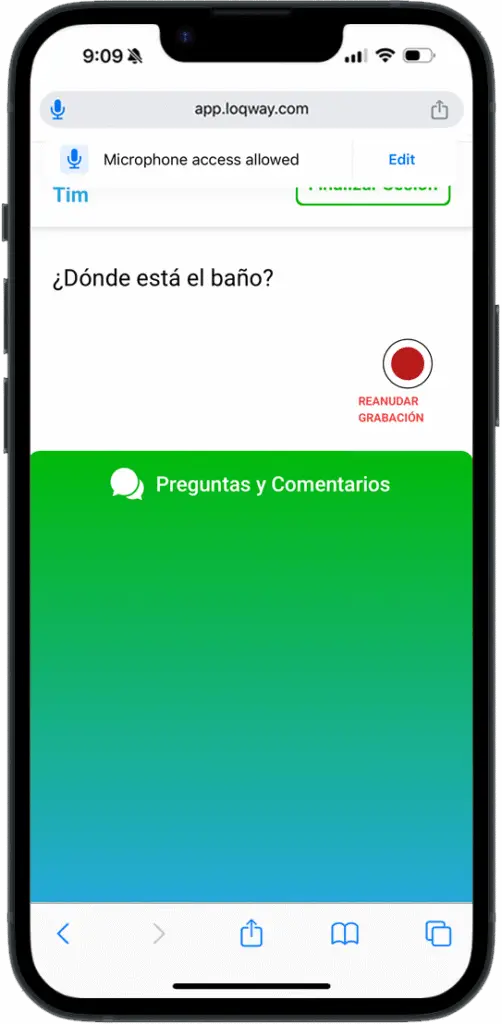
If your browser asks for permission to access the microphone, click “Allow.”

The other person can now begin speaking in their language.

You will see it transcribed in real time in their spoken language in this first browser window.

Computer: If you are using a laptop or desktop, the two browser windows can be side-by-side and you will see both the other language and translation into your language instantly.

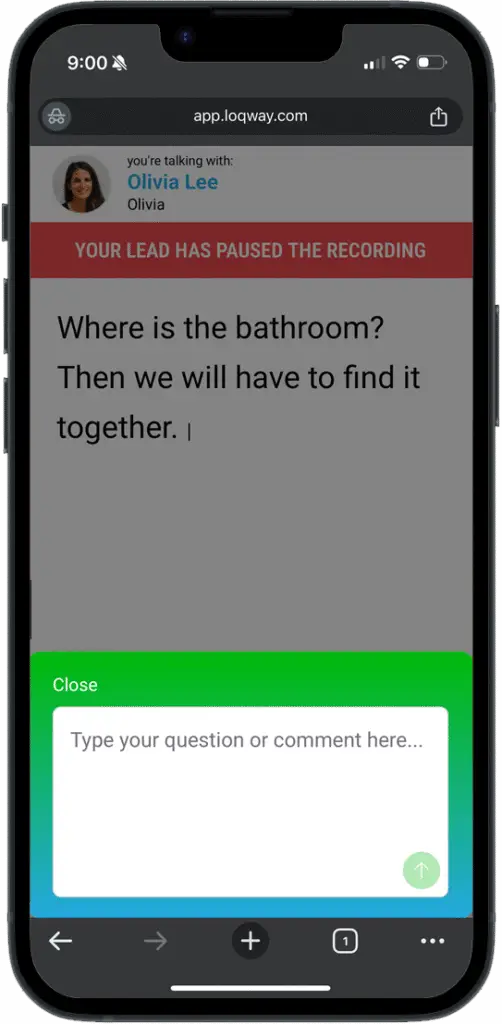
Phone: If you’re on a phone, you will  need to wait until they stop speaking, press “pause recording” and then return to the other window in order to see the translation for you to read. If your translation hasn’t appeared yet, just refresh the browser.

Now you can press the green “Send a Question or Comment” button and type what you want to say in your language or use speech-to-text because your device is set to listen for your language by default.

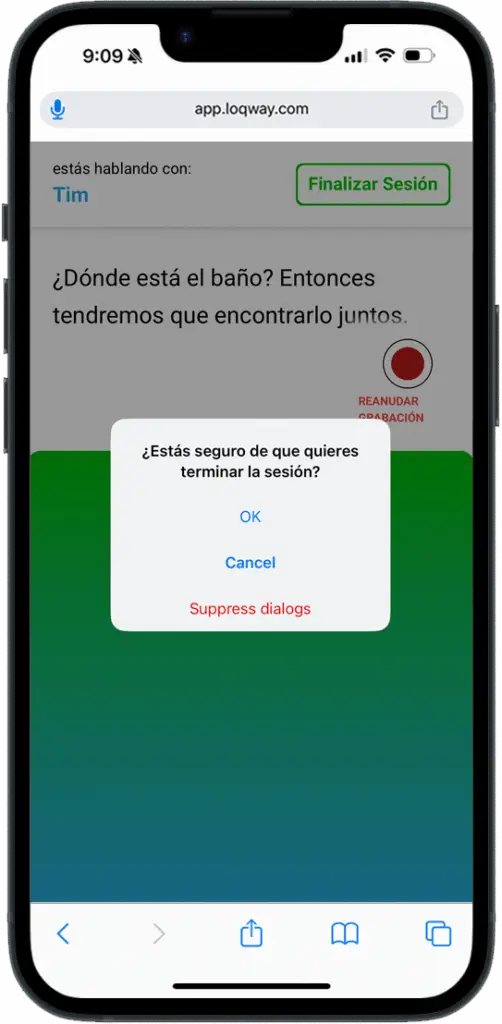
Note: When you return to the first window so the other person can see your words translated, your browser may ask if you want to end the session. Click ‘Cancel.’

It may also present a popup saying the recording is paused, so click “Resume Recording.”

You will see that the comment you sent in your language has now been translated for your conversation partner to read and respond to verbally.

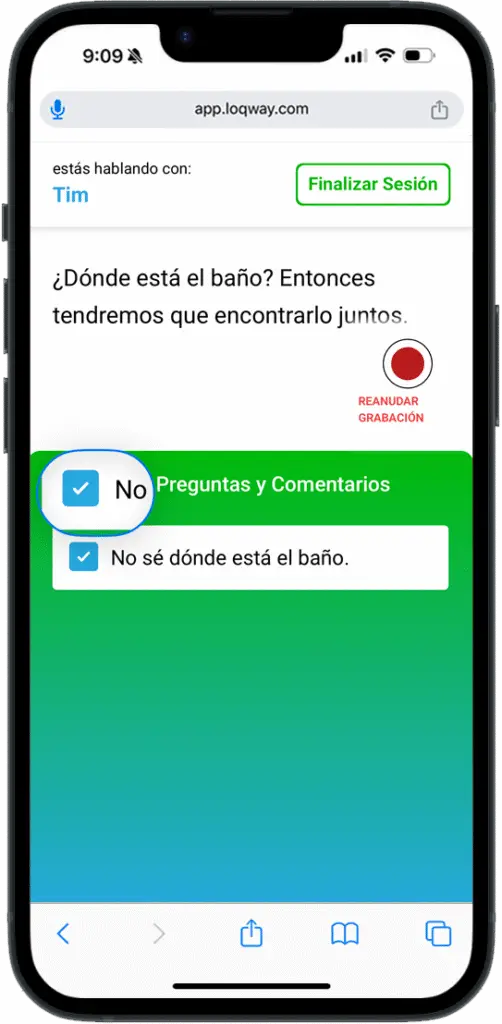
As they respond to your comments and questions, simply click the blue box to remove them.

If you choose to save the transcript, they will appear in the conversation when you sent them.

Repeat these steps as you have your conversation. If you’re just on your phone, it will require manual window/tab switching. If you’re on a device that can have two browser windows side-by-side, you will see everything as it happens.

When the conversation is over, click “End Session” on the first device in the top right corner. A pop-up will appear asking you to confirm that you want to end the conversation. Click the top choice to confirm “OK.”

You may change your selections from the beginning regarding saving the transcript or emailing the transcript.

Click the green “Confirm” button at the bottom.

Return to the second browser window. If you chose to email the transcript and did not enter your email at the beginning, you can enter it now.

Click the green “Submit” button.